
Q1. Why am I being asked to enter a Two-Factor Authentication (2FA) verification code when logging in to Formstack?
Answer:
If you see the Two-Factor Authentication (2FA) verification page (as below), Formstack is requesting a verification code from the authenticator app that was originally linked to your Formstack account.
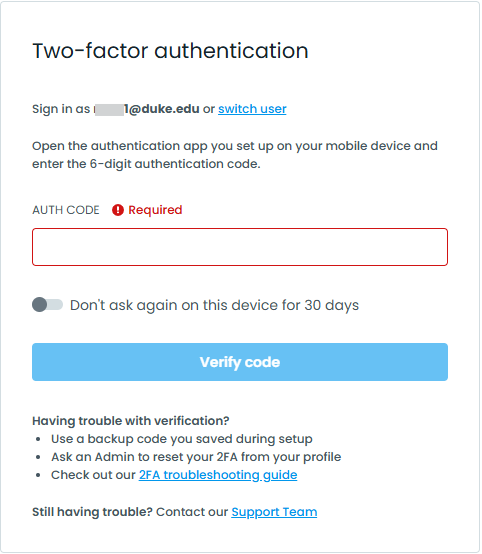
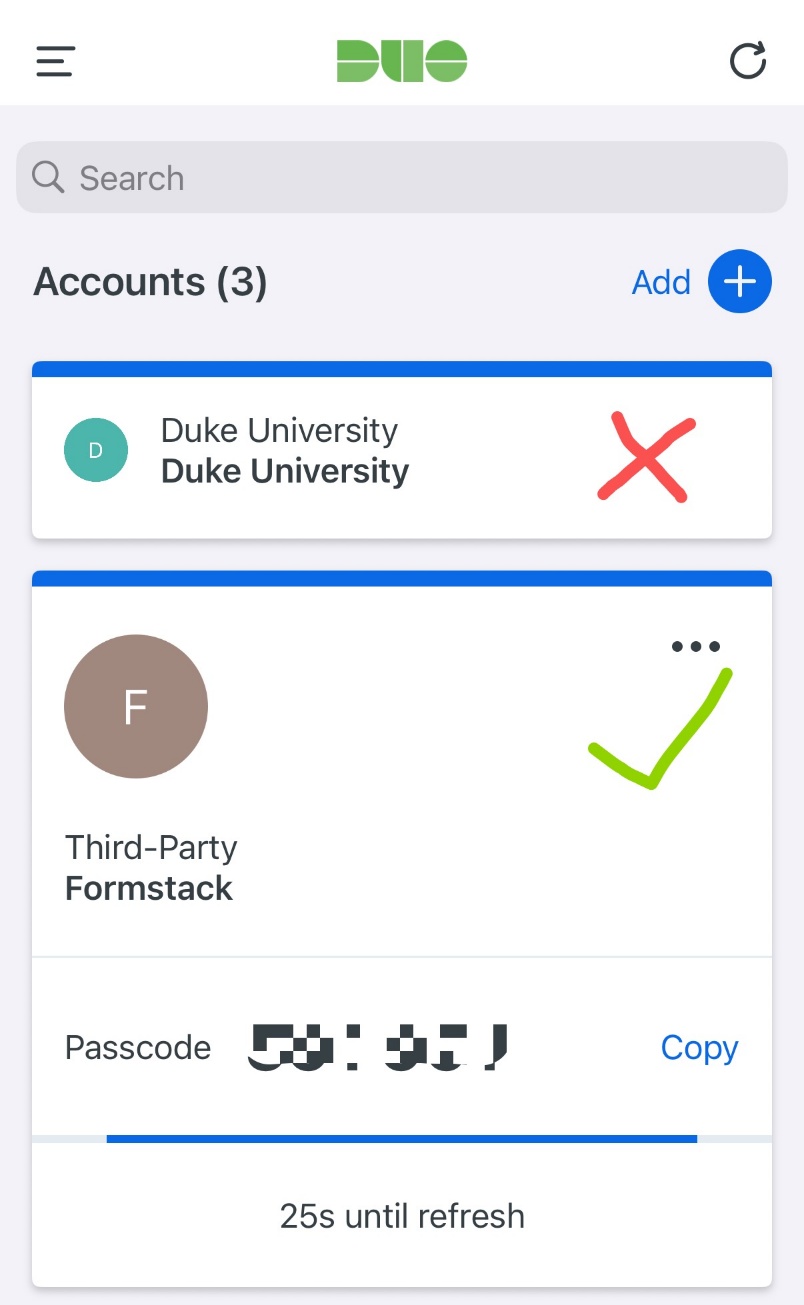
Important: The Formstack 2FA account is different from the Duke University MFA account.
If you are using Duo Mobile, open the app and locate the Third-Party account that was previously added for Formstack. Enter the 6-digit verification code displayed under that account to complete the login.
Q2. I cannot find the authenticator account that was previously linked to my Formstack account. What should I do?
Answer:
If you no longer have access to the original Formstack authenticator account, follow these steps:
Step 1. Contact IT Service Desk
Email service-desk@dukekunshan.edu.cn and ask an IT administrator to reset the Two-Factor Authentication (2FA) settings for your Formstack account.
Step 2. Sign in to Formstack again
After your 2FA has been reset:
- Close all browser windows.
- Open the Formstack login page again.
- Sign in through Duke Single Sign-On (SSO).
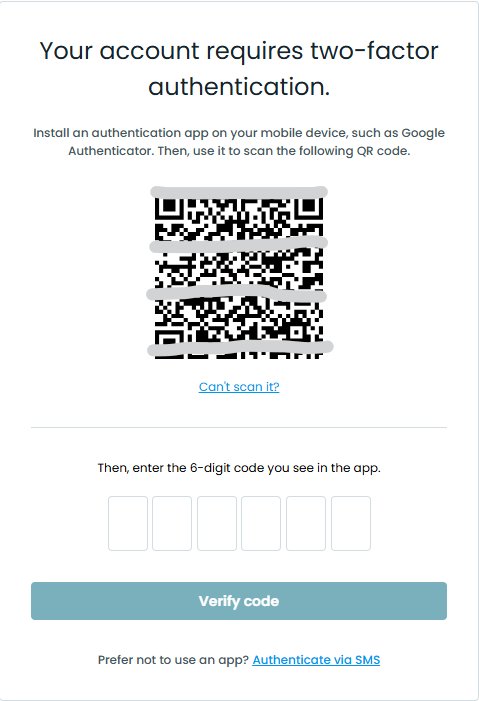
- A new QR code will be displayed on the screen (as below).
Step 3. Set up a new authenticator
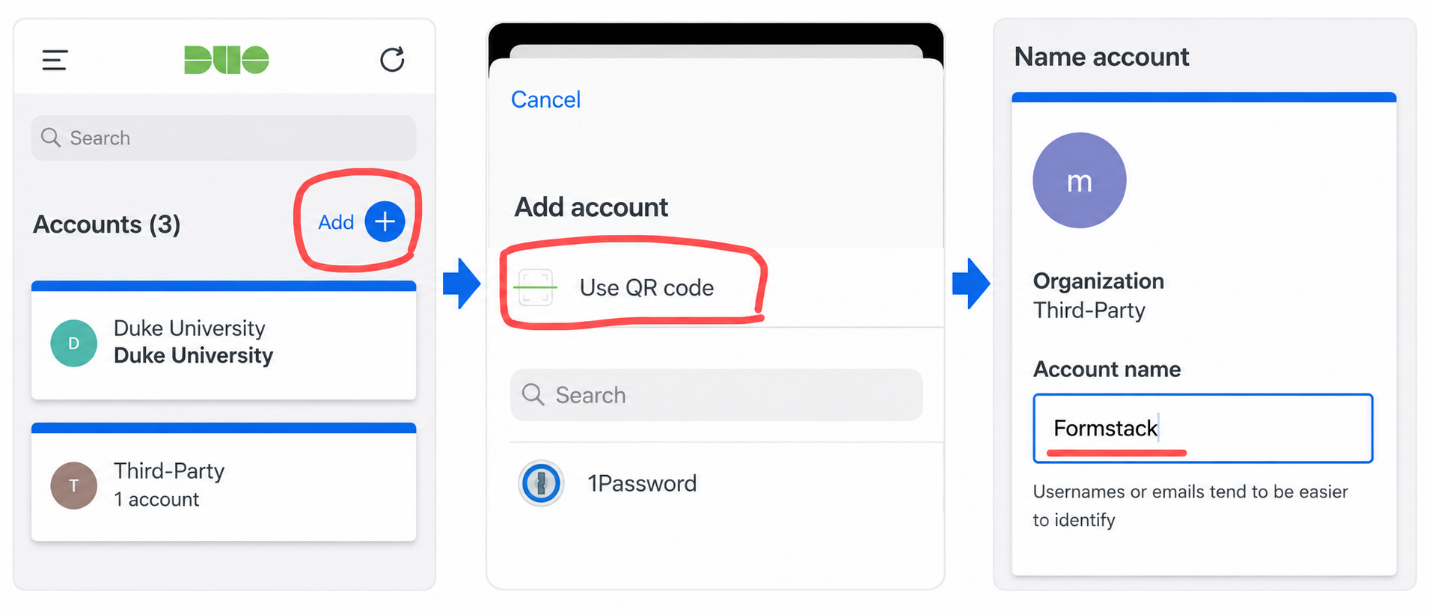
Using an authenticator app (we recommend Duo Mobile):
- Tap the Add (+) button in the upper-right corner.
- Select Use QR Code.
- Scan the QR code displayed on the Formstack page.
- A new Third-Party account will be created.
- We recommend renaming this account to Formstack for easier identification.
- Tap Save.
Step 4. Log in to Formstack
You can now use the newly created Formstack account in your authenticator app. Enter the 6-digit verification code displayed under that account to complete the Formstack login.