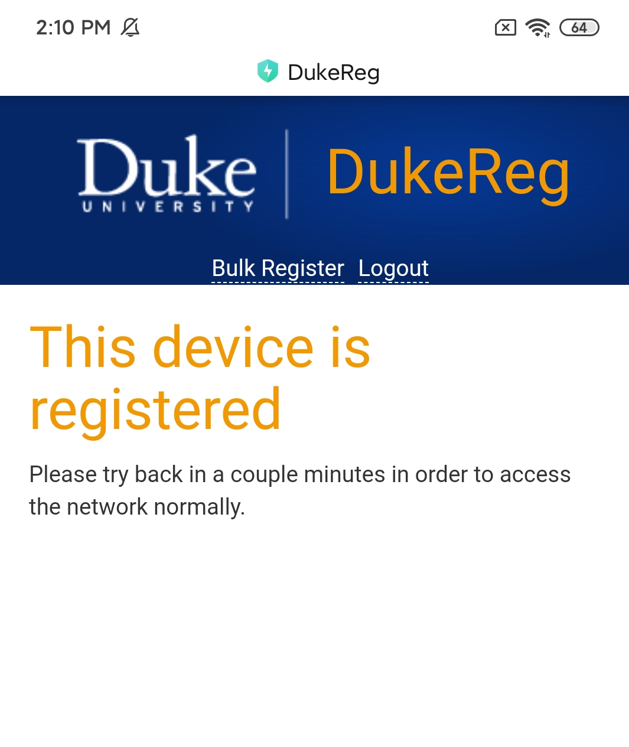
How to connect DKU Wi-Fi on Windows PC
STEP 1
Find and connect to the DKU Wireless:

Password: Ask a DKU staff member for this password or call IT Service Desk (+86)0512-3665-7100.
STEP 2
After you’re connected to DKU wireless, the DukeReg page will show up automatically to register your device. If it doesn’t show up, you may open your web browser and access https://dukereg.duke.edu.
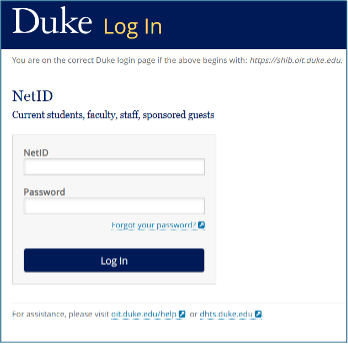
Please use your NETID and password to log in DukeReg website. If MFA option is required, please finish MFA.
STEP 3
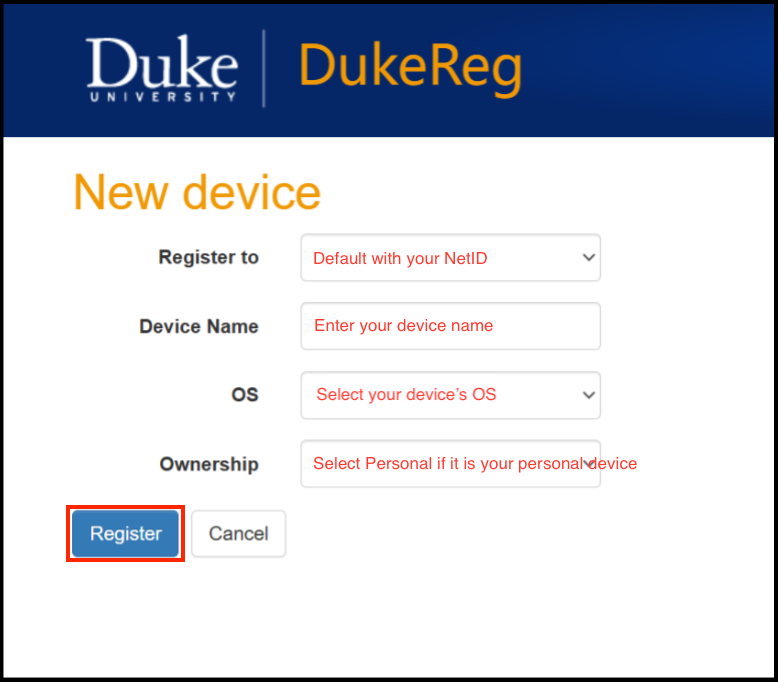
1. The “Register to” should automatically fill in with your name.
2. The “Device Name” section, please put something to help you identify your device, such as “My Laptop” or “iPhone”.
3. Select your Device “OS” Type, and “Ownership”, if it’s your own personal device, you may choose “Personal”, if it’s purchased with DKU fund, please choose “Duke University”
4. Click the Register button.
STEP 4
It may take several minutes to take effect after your device is registered, or you could switch off/on Wi-Fi to take effect immediately.
How to connect DKU Wi-Fi on MacBook
STEP 1
Find and connect to the DKU Wireless:
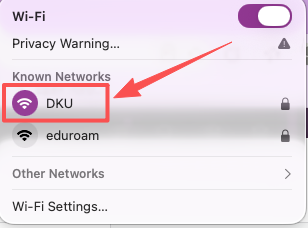
Password: Ask a DKU staff member for this password or call IT Service Desk (+86)0512-3665-7100.
STEP 2
After you’re connected to DKU wireless, the DukeReg page will show up automatically to register your device. If it doesn’t show up, you may open your web browser and access https://dukereg.duke.edu.
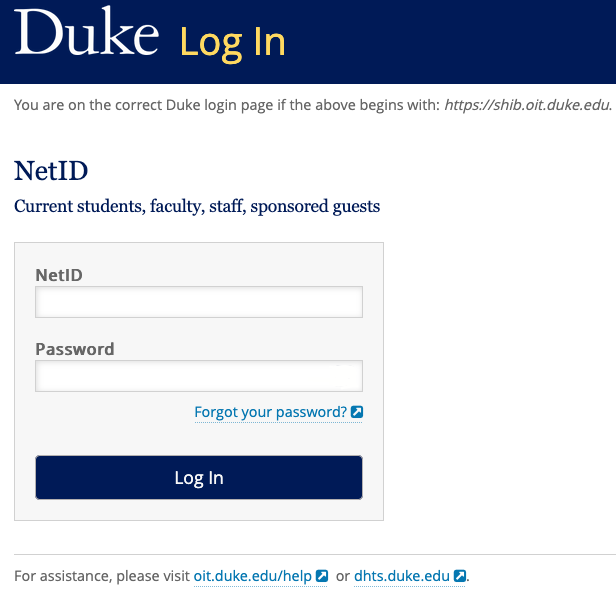
Please use your NETID and password to log in DukeReg website, if MFA option is required, please finish MFA by DUO push before logging in.
STEP 3
1. The “Register to” should automatically fill in with your name.
2. The “Device Name” section, please put something to help you identify your device, such as “My Laptop” or “iPhone”.
3. Select your Device “OS Type”, and “Ownership”, if it’s your own personal device, you may choose “Personal”, if it’s purchased with DKU fund, please choose “Duke University”
4. Click the Register button.

STEP 4
It may take several minutes to take effect after your device is registered, or you could switch off/on Wi-Fi to take effect immediately.
How to connect DKU Wi-Fi on iPhone
STEP 1
Go to iPhone “Settings”, then choose “WLAN”, find and connect to the DKU Wireless:
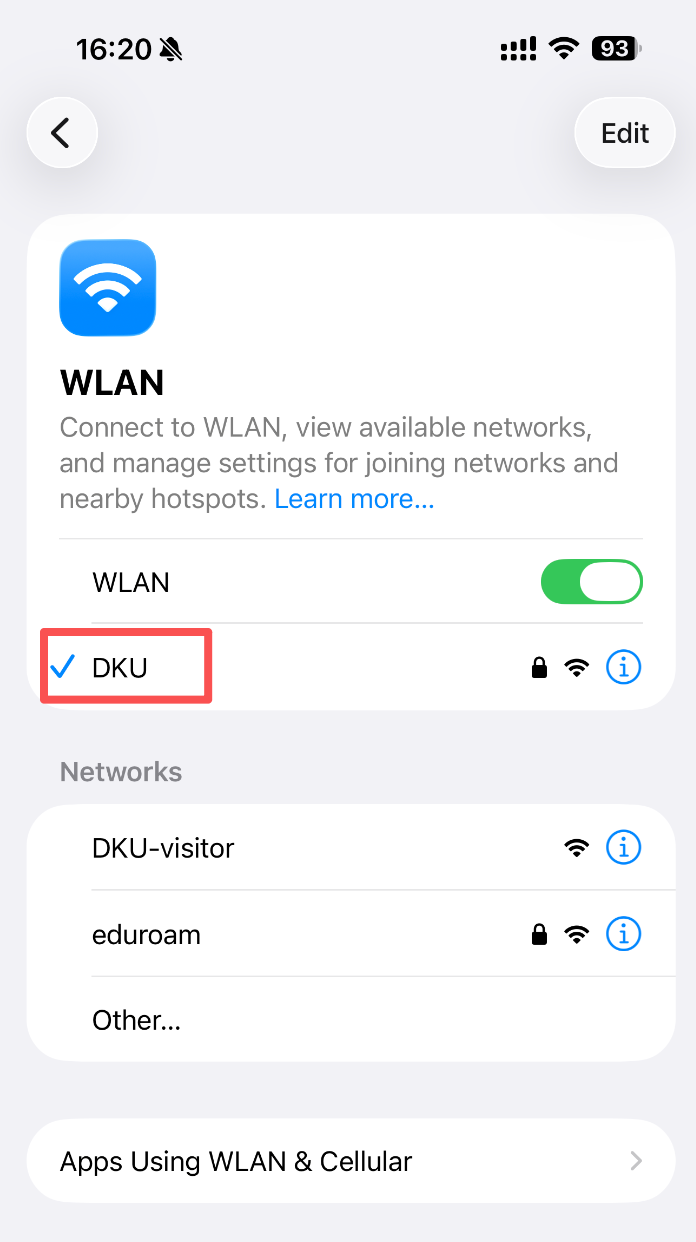
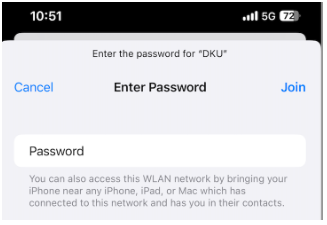
Password: Ask a DKU staff member for this password or call IT Service Desk (+86)0512-3665-7100.
STEP 2
After you’re connected to DKU wireless, the DukeReg page will show up automatically to register your device. If it doesn’t show up, you may open your web browser and access https://dukereg.duke.edu.
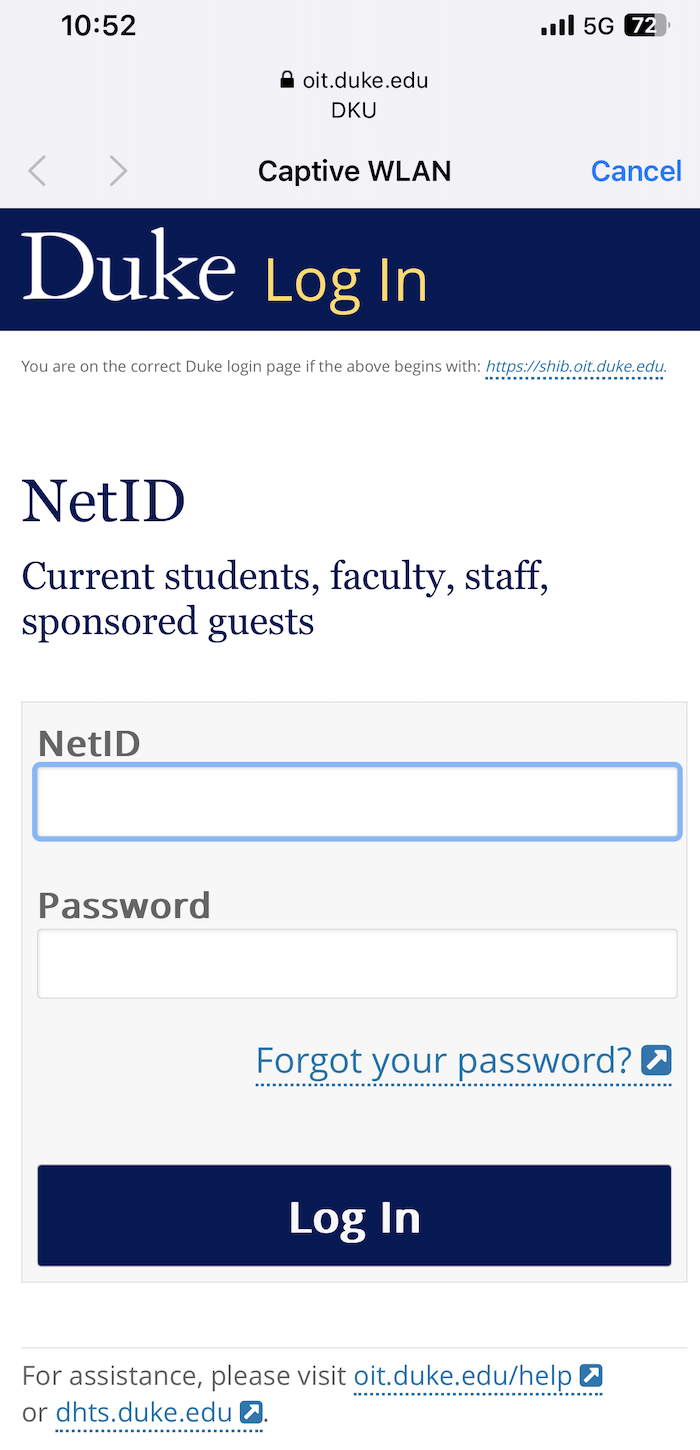
Please use your NETID and password to log in DukeReg website, if MFA option is required, please finish MFA by DUO push before logging in
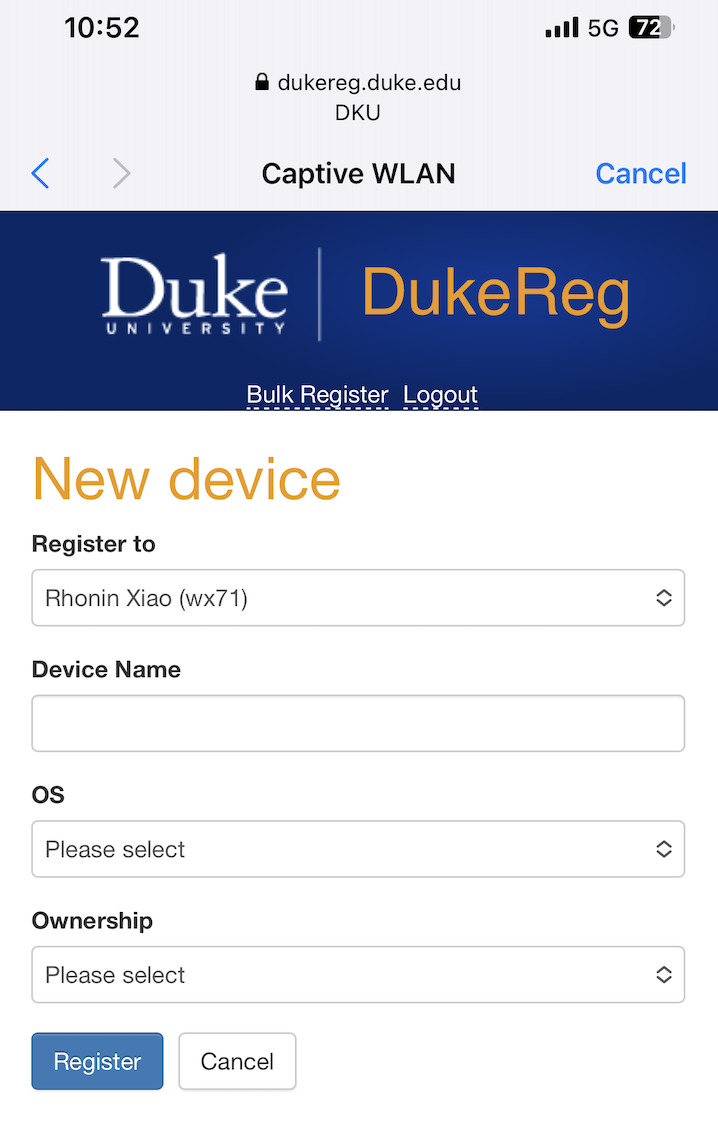
STEP 3
1. The “Register to” should automatically fill in with your name.
2. The “Device Name” section, please put something to help you identify your device, such as “My Laptop” or “iPhone”.
3. Select your Device “OS Type”, and “Ownership”, if it’s your own personal device, you may choose “Personal”, if it’s purchased with DKU fund, please choose “Duke University”
4. Click the Register button.
STEP 4
It may take several minutes to take effect after your device is registered, or you could switch off/on Wi-Fi to take effect immediately.
How to connect DKU Wi-Fi on Android Phone
STEP 1
Go to Phone “Settings”, then choose “WLAN”, find and connect to the DKU Wireless:
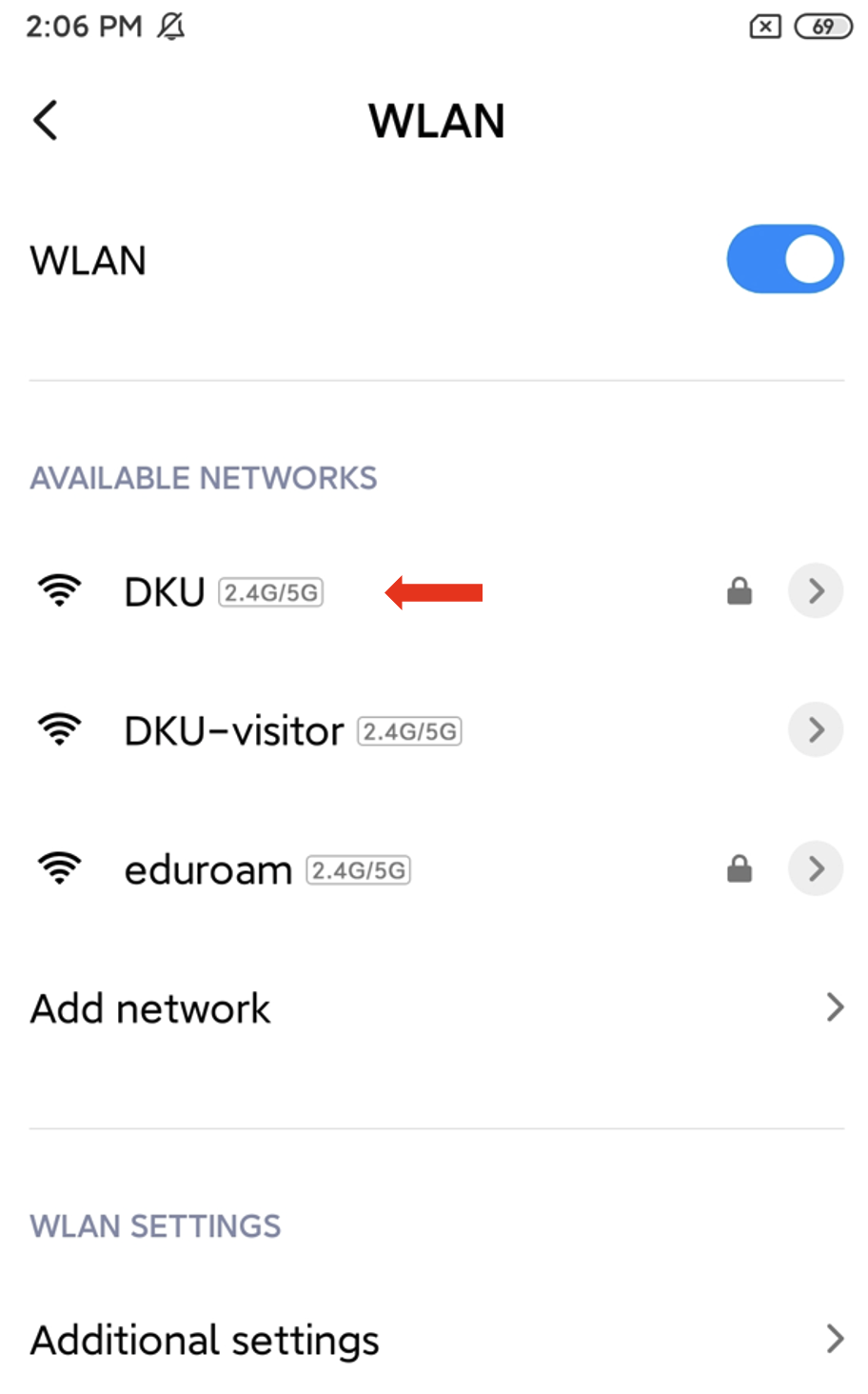
Password: Ask a DKU staff member for this password or call IT Service Desk (+86)0512-3665-7100.
STEP 2
After you’re connected to DKU wireless, the DukeReg page will show up automatically to register your device. If it doesn’t show up, you may open your web browser and access https://dukereg.duke.edu.
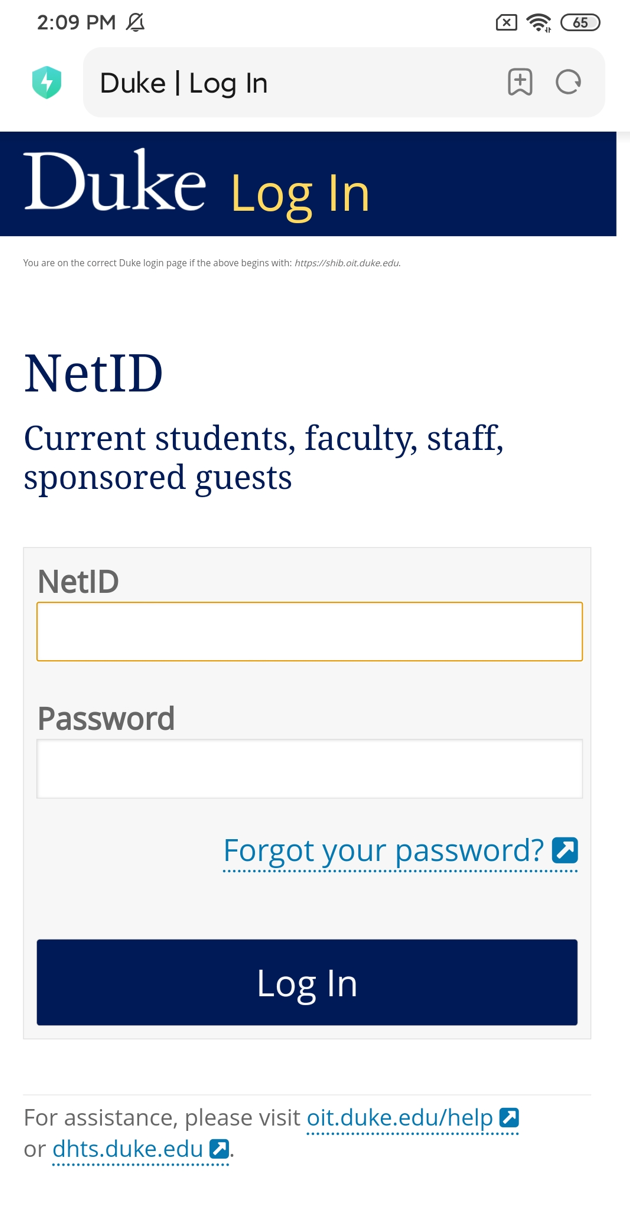
Please use your NETID and password to log in DukeReg website, if MFA option is required, please finish MFA by DUO push before logging in.
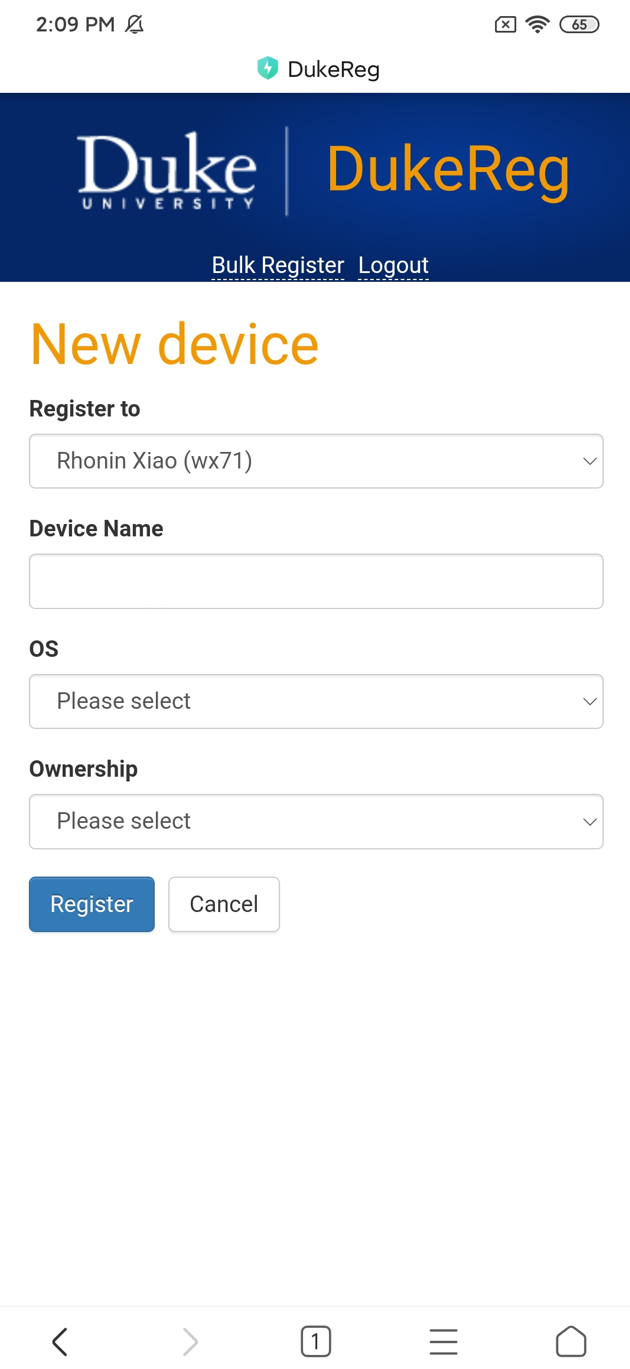
STEP 3
1. The “Register to” should automatically fill in with your name.
2. The “Device Name” section, please put something to help you identify your device, such as “My Laptop” or “iPhone”.
3. Select your Device “OS Type”, and “Ownership”, if it’s your own personal device, you may choose “Personal”, if it’s purchased with DKU fund, please choose “Duke University”
4. Click the Register button.
STEP 4
It may take several minutes to take effect after your device is registered, or you could switch off/on Wi-Fi to take effect immediately.