
How to Book a Meeting Room via EMS Web App
Steps:
1. Open your web browser, Chrome, for example.
2. Go to the EMS web app: https://dukekunshan.emscloudservice.com/web/BrowseForSpace.aspx
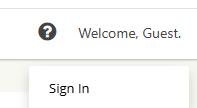
3. On the upper right corner, click “Welcome, Guest”, then click Sign In.
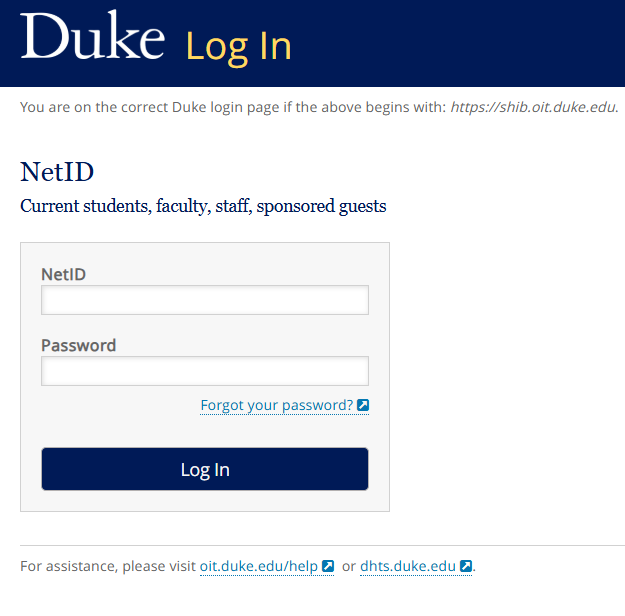
4. Type in your NetId and password. Click “Log In” button.
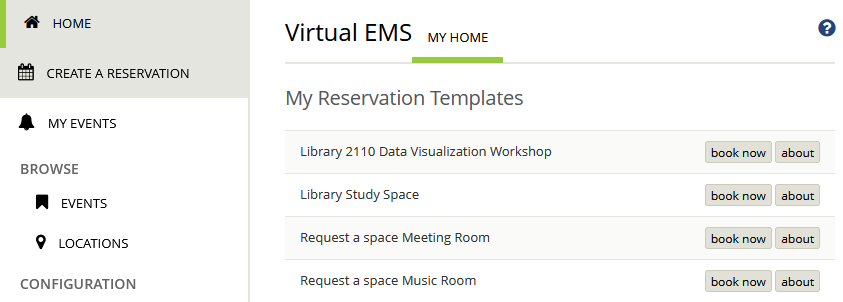
5. On the HOME tab, My Reservation Templates section lists the reservation templates that you can use. Find the Request a space Meeting Room template, click “book now” button.
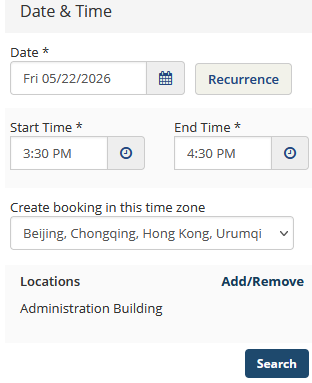
6. Select the reservation date, start time, end time, time zone and locations, click “Search” button.
7. From the Room Search Results, you’ll find all the rooms that you can reserve.
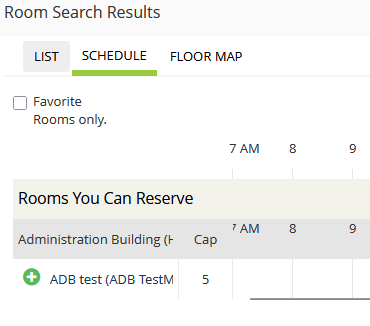
8. Click the green plus button beside the room you want to reserve.
9. Fill in the number of attendees and setup type. Click “Add Room” button.
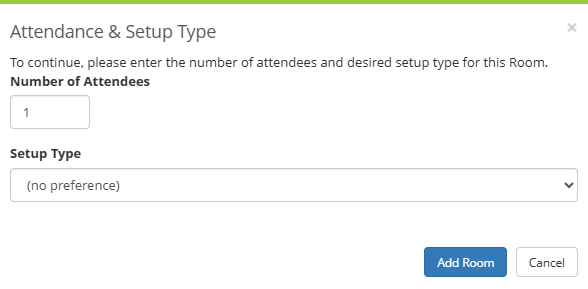
10. Click “Next Step” button to go to the Services page.
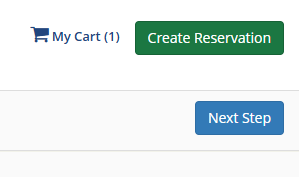
11. On the Services page, select the services you want and click “Next Step” button to go the Reservation Details page.
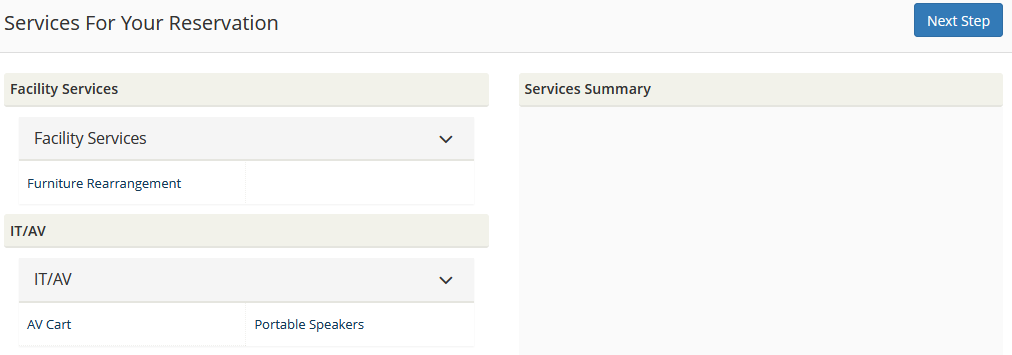
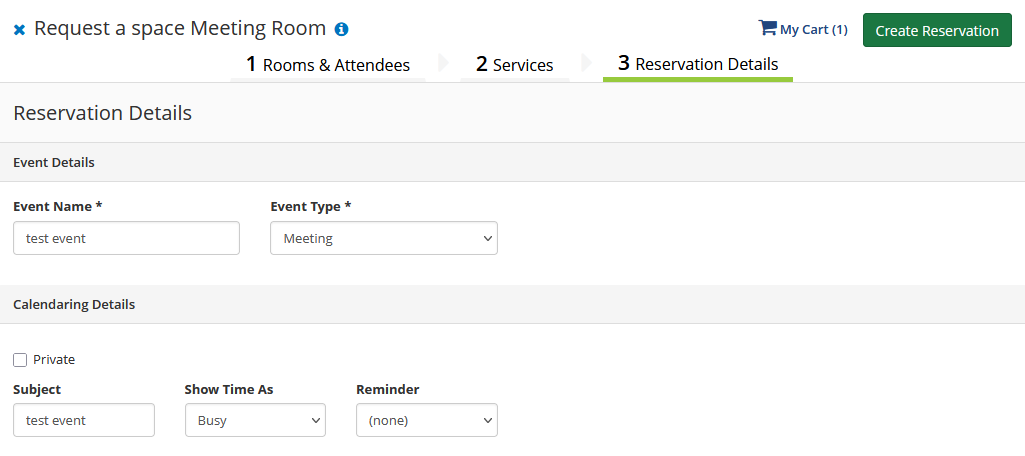
12. Fill in related information on the Reservation Details page and click “Create Reservation” button.
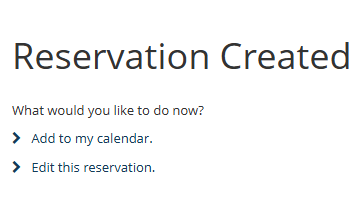
13. Your reservation is created.
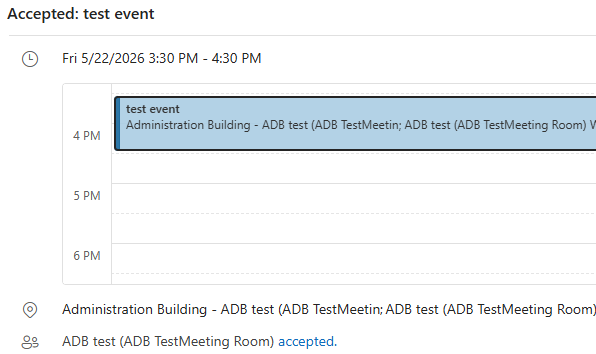
14. You’ll also receive an Outlook email confirming that your room booking request was accepted.
How to Book a Study Room at Library via EMS Web App
Steps:
1. Open your web browser, Chrome, for example.
2. Go to the EMS web app: https://dukekunshan.emscloudservice.com/web/BrowseForSpace.aspx
3. On the upper right corner, click “Welcome, Guest”, then click Sign In.
4. Type in your NetId and password. Click “Log In” button.
5. On the HOME tab, My Reservation Templates section lists the reservation templates that you can use. Find the Library Study Space template, click “book now” button.
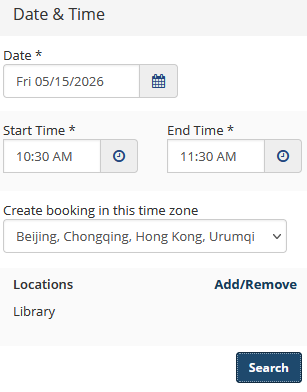
6. Select the reservation date, start time, end time, time zone and locations, click “Search” button.
7. From the Room Search Results, you’ll find all the rooms that you can reserve.
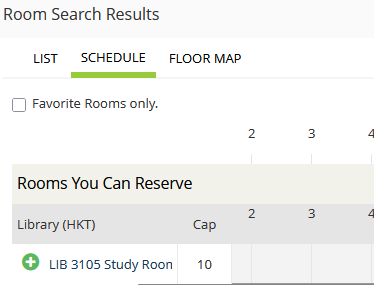
8. Click the green plus button beside the room you want to reserve.
9. Fill in the number of attendees and setup type. Click “Add Room” button.
10. Click “Next Step” button to go to the Services page.
11. Fill in related information on the Reservation Details page and click “Create Reservation” button.
12. Your reservation is created.
Rules:
- Each reservation can be made for a maximum of 3 hours.
- Seats or rooms can be reserved for use within the next 7 days, with a maximum of 5 active reservations.
- Study Rooms are available for reservation from 8:00 AM to 11:00 PM.
How to Book a Data Visualization Workshop at Library via EMS Web App
Steps:
1. Open your web browser, Chrome, for example.
2. Go to the EMS web app: https://dukekunshan.emscloudservice.com/web/BrowseForSpace.aspx
3. On the upper right corner, click “Welcome, Guest”, then click Sign In.
4. Type in your NetId and password. Click “Log In” button.
5. On the HOME tab, My Reservation Templates section lists the reservation templates that you can use. Find the Library 2110 Data Visualization Workshop template, click “book now” button.
6. Select the reservation date, start time, end time, time zone and locations, click “Search” button.
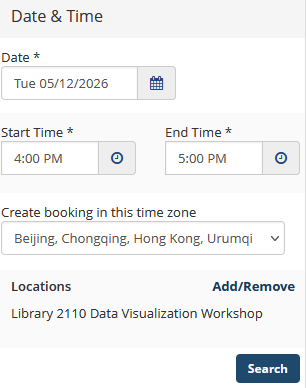
7. From the Room Search Results, you’ll find all the rooms that you can reserve.
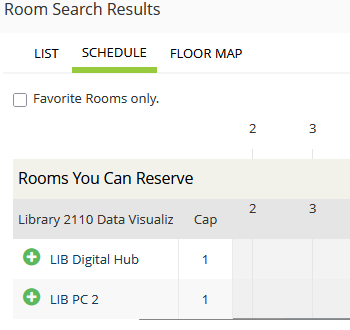
8. Click the green plus button beside the room you want to reserve.
9. Fill in the number of attendees and setup type. Click “Add Room” button.
10. Click “Next Step” button to go to the Services page.
11. Fill in related information on the Reservation Details page and click “Create Reservation” button.
12. Your reservation is created.
Rules:
- Each reservation can be made for a maximum of 3 hours.
- Seats or rooms can be reserved for use within the next 7 days, with a maximum of 1 active reservation per day.
- Data & Visualization Studio is available for reservation from 9:00 AM to 5:00 PM, Monday to Friday.
How to Book a Music Room via EMS Web App
Steps:
1. Open your web browser, Chrome, for example.
2. Go to the EMS web app: https://dukekunshan.emscloudservice.com/web/BrowseForSpace.aspx
3. On the upper right corner, click “Welcome, Guest”, then click Sign In.
4. Type in your NetId and password. Click “Log In” button.
5. On the HOME tab, My Reservation Templates section lists the reservation templates that you can use. Find the Request a space Music Room template, click “book now” button.
6. Select the reservation date, start time, end time, time zone and locations, click “Search” button.
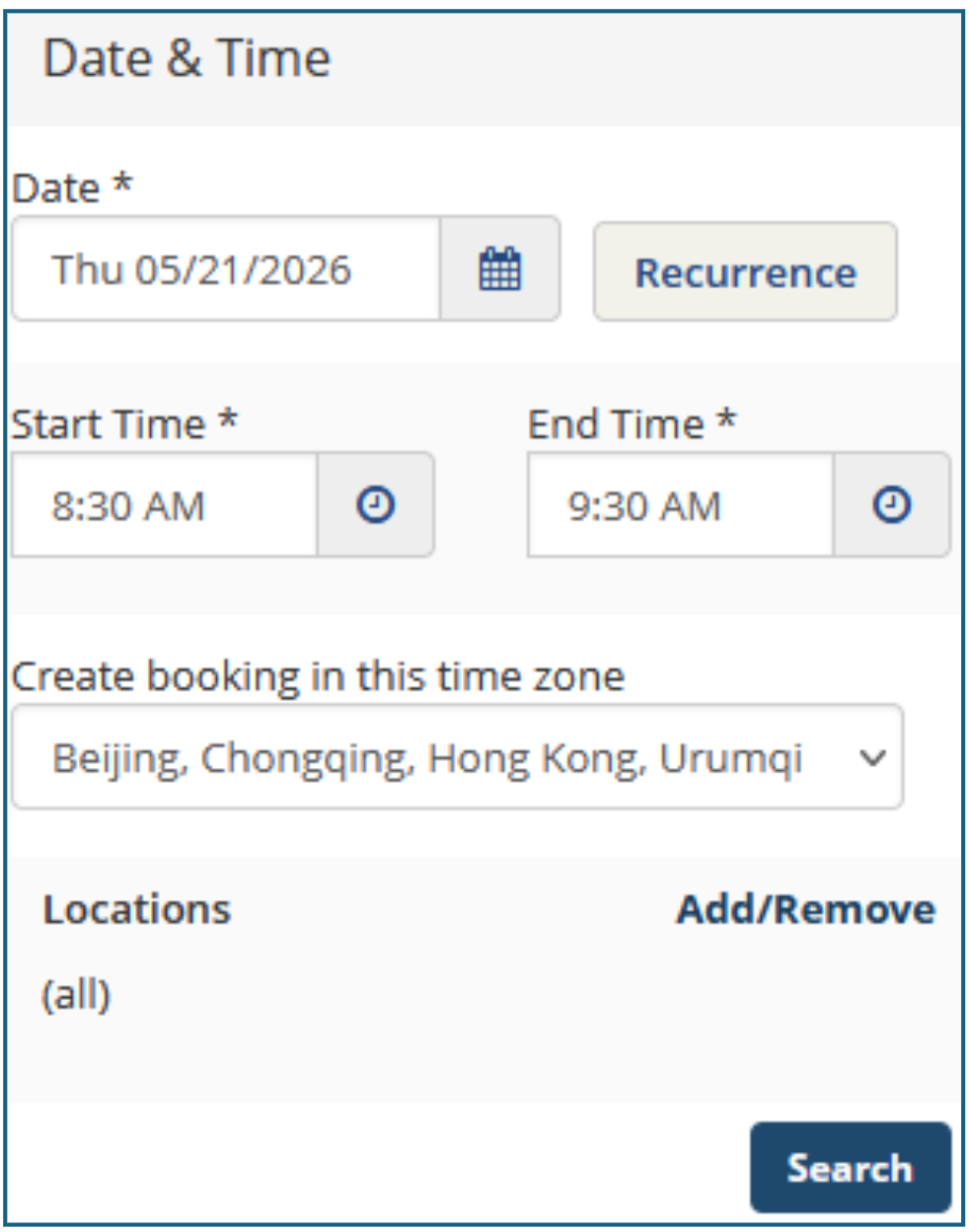
7. From the Room Search Results, you’ll find all the rooms that you can reserve.
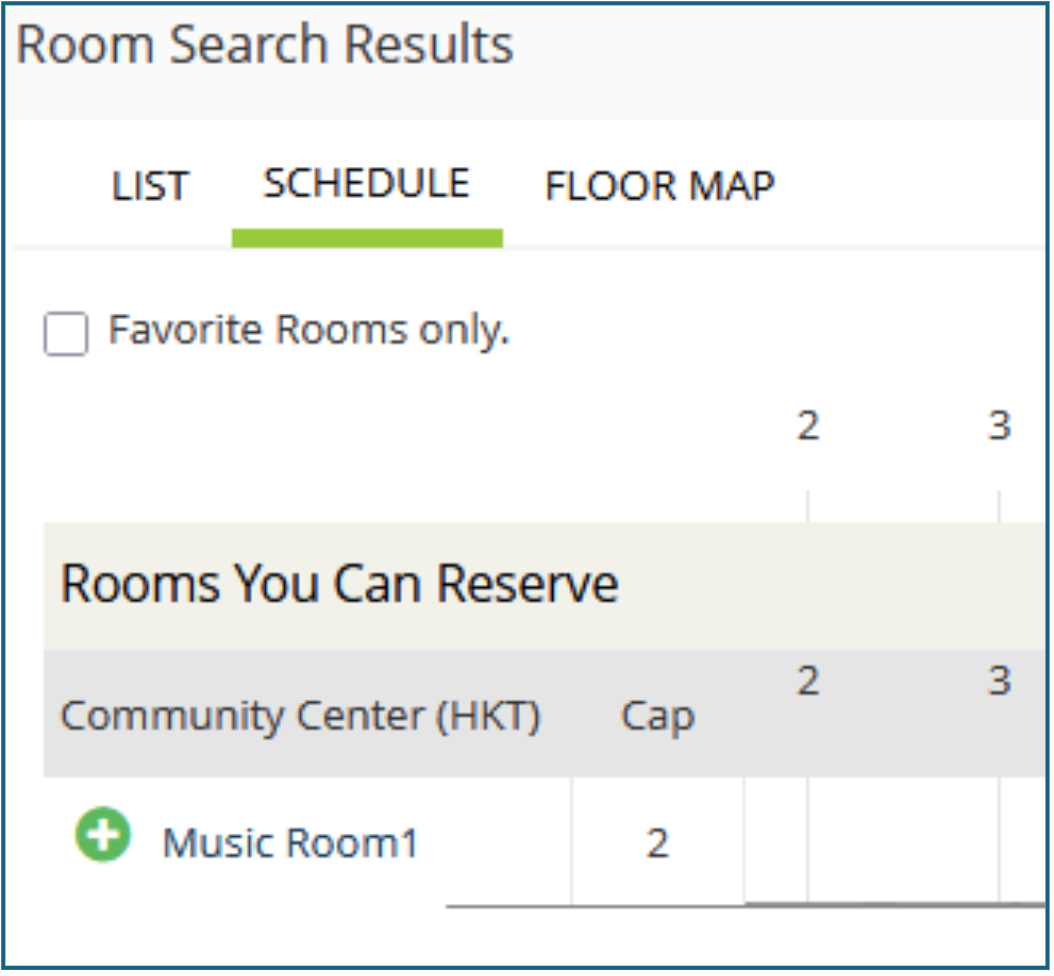
8. Click the green plus button beside the room you want to reserve.
9. Fill in the number of attendees and setup type. Click “Add Room” button.
10. Click “Next Step” button to go to the Services page.
11.On the Services page, select the services you want and click “Next Step” button to go to the Reservation Details page.
12. Fill in related information on the Reservation Details page and click “Create Reservation” button.
13. Your reservation is created.